Monday, September 20, 2010

FM Transmitter MAX2606 using USB

USB FM Transmitter MAX2606

This MP3 Player FM transmitter can be used to listen to your own music throughout your home. The transmitter circuit use no coils that have to be wound. When this FM transmitter used in the car, there is no need for a separate input to the car stereo to play back the music files from your MP3 player.


 This FM transmitter use a chip made by Maxim Integrated Products, the MAX2606. The VCO (Voltage Controlled Oscillator) in this IC uses a Colpitts oscillator circuit. The variable-capacitance (varicap) diode and feedback capacitors for the tuning have also been integrated on this chip, so that you only need an external inductor to fix the central oscillator frequency.
The supply voltage to the IC should be between 2.7 and 5.5 V, the current consumption is between 2 and 4 mA. With values like these it seemed a good idea to supply the circuit with power from a USB port. A common-mode choke is connected in series with the USB connections in order to avoid interference between the circuit and the PC supply.

The stereo signal connected to K1 is combined via R1 and R2 and is then passed via volume control P1 to the Tune input of IC1, where it causes the carrier wave to be frequency modulated. Filter R6/C7 is used to restrict the bandwidth of the audio signal. The setting of the frequency (across the whole VHF FM broadcast band) is done with P2, which is connected to the 5 V supply voltage.

The transmitter PCB designed uses resistors and capacitors with 0805 SMD packaging. The size of the board is only 41.2 x 17.9 mm, which is practically dongle-sized. For the aerial an almost straight copper track has been placed at the edge of the board. In practice we achieved a range of about 6 metres (18 feet) with this. There is also room for a 5-way SIL header on the board. Here we find the inputs to the 3.5 mm jack plug, the input to P1 and the supply voltage. The latter permits the circuit to be powered independently from the mains supply, via for example three AA batteries or a Lithium button cell. Inductor L1 in the prototype is a type made by Murata that has a fairly high Q factor: minimum 60 at 100 MHz.

Take care when you solder filter choke L2, since the connections on both sides are very close together. The supply voltage is connected to this, so make sure that you don’t short out the USB supply! Use a resistance meter to check that there is no short between the two supply connectors before connecting the circuit to a USB port on a computer or to the batteries.

P1 has the opposite effect to what you would expect (clockwise reduces the volume), because this made the board layout much easier. The deviation and audio bandwidth varies with the setting of P1. The maximum sensitivity of the audio input is fairly large. With P1 set to its maximum level, a stereo input of 10 mVrms is sufficient for the sound on the radio to remain clear. This also depends on the setting of the VCO. With a higher tuning voltage the input signal may be almost twice as large (see VCO tuning curve in the data sheet). Above that level some audible distortion becomes apparent. If the attenuation can’t be easily set by P1, you can increase the values of R1 and R2 without any problems.

Measurements with an RF analyzer showed that the third harmonic had a strong presence in the transmitted spectrum (about 10 dB below the fundamental frequency). This should really have been much lower. With a low-impedance source connected to both inputs the bandwidth varies from 13.1 kHz (P1 at maximum) to 57 kHz (with the wiper of P1 set to 1/10).

In this circuit the pre-emphasis of the input is missing. Radios in Europe have a built-in de-emphasis network of 50 μs (75 μs in the US). The sound from the radio will therefore sound noticeably muffled. To correct this, and also to stop a stereo receiver from mistakenly reacting to a 19 kHz component in the audio signal, an enhancement circuit is published elsewhere in this issue (Pre-emphasis for FM Transmitter, also with a PCB). Author: Mathieu Coustans, Elektor Magazine, 2009

MP3 FM Transmitter Parts List
Resistors (all SMD 0805) R1,R2 = 22kΩ R3 = 4kΩ7 R4,R5 = 1kΩ R6 = 270Ω P1 = 10kΩ preset, SMD (TS53YJ103MR10 Vishay Sfernice, Farnell # 1557933) P2 = 100kΩ preset, SMD(TS53YJ104MR10 Vishay Sfernice, Farnell # 1557934) Capacitors (all SMD 0805) C1,C2,C5 = 4μF7 10V C3,C8 = 100nF C4,C7 = 2nF2 C6 = 470nF Inductors L1 = 390nF, SMD 1206 (LQH31HNR39K03L Murata, Farnell # 1515418) L2 = 2200Ω @ 100MHz, SMD, common-mode choke, 1206 type(DLW31SN222SQ2L Murata, Farnell #1515599) Semiconductors IC1 = MAX2606EUT+, SMD SOT23-6 (Maxim Integrated Products) Miscellaneous K1 = 3.5mm stereo audio jack SMD (SJ1-3513-SMT CUI Inc, DIGI-Key # CP1-3513SJCT-ND) K2 = 5-pin header (only required in combination with 090305-I pre-emphasis circuit) K3 = USB connector type A, SMD (2410 07 Lumberg, Farnell # 1308875)


Source: http://www.electronics-diy.com/

Friday, September 17, 2010

Video Object Tracking

Source: http://instruct1.cit.cornell.edu/
Adam Papamarcos (aip23@cornell.edu)
Kerran Flanagan (kaf42@cornell.edu)


We have created a real-time video object tracking / shape recognition device, and a fun game library to demonstrate its abilities
For our project, we wanted to push the video sampling and processing capabilities of the ATmega644 8-bit microcontroller. Using a high-speed analog-to-digital converter as an input device, we were able to sample a reasonably high-resolution grayscale image from a color camera's video output. Using this grayscale image, we are able to track objects and recognize shapes that stood out from the background by a customizable threshold.
From this system, we created a game called Human Tetris to show the shape recognizition capabillity. In this game, players must contort their bodies into shapes displayed on screen in a given amount of time. To demonstrate the potential for our device to expand to a larger game library, we also implemented a port of Brick Breaker. This game shows off the object tracking capability, where players must physically interact with the bouncing ball to keep it on screen and break bricks.


High Level Design

Almost all major gaming consoles are moving to user input systems involving tracking all or part of a player's body (see Nintendo Wii Remote, PlayStation Move, and XBox Project Natal). Our project setup is similar to Project Natal, which Microsoft claims to be a "controller-free gaming and entertainment experience", using a single sensor device (with at least camera and microphone) placed by the TV. We have demonstrated the feasibility of a basic motion-controlled gaming system using low-cost parts.
The system is based off of an ATmega644 microcontroller with two peripherals: a high-speed flash analog-to-digital converter, and an onscreen display device for video overlay. With just 4 kilobytes of RAM and a 20MHz clock speed, the MCU needs these peripherals to take some of the load off of its processing capabilities. Since we wanted to provide a real-time camera feed on the display (like a "mirror" for the player), and since the ATmega644 is not fast enough to generate a full color NTSC signal, we decided early on that we would use a color video camera module which outputs an NTSC signal directly.
The system accepts a color NTSC video signal, filters out the DC component, and samples the video stream at real-time speed. This sample is stored as a grayscale image in the MCU's memory which can be processed by the application. The onscreen display overlays shape information and game data for user interaction.

highlevel
High-level block diagram
Based on this system, we have implemented a video arcade game called Human Tetris, based on a Japanese game show event. In the game, contestants are faced with an oncoming solid wall with a shape cutout. The players must fit through the shape, or else they are thrown back into a pool of slime.

Our game displays a shape on the screen which the players must fit into within a short amount of time. If they succeed, they are faced with more difficult shapes and shorter amounts of time until they are inevitably "slimed". The game provides the player with real-time feedback by displaying the video on the screen with the device's interpretation of their shape.
Our project involves two standards: NTSC and SPI. NTSC is well-defined and is used as our input and output medium. SPI is more of an agreement than a standard, and our project uses it internally to the specifications of the microcontroller and on-screen display device.
Tetris is copyrighted and trademarked thoroughly, so attempts to turn this project into a product would have to be preceded by licensing talks or altering the aesthetics. "Human Tetris" is a commonly used description for the game show our game is based on, but the actual game play is not that of Tetris.

Hardware

Prototyping

Our finished product is neatly tucked onto a 2.5" x 3.8" custom printed circuit board, but for most of the design stage, we prototyped on an STK500, a solderless breadboard, and the ATmega644 custom target board. Our earliest prototyping simply involved working with the ATmega644 on the STK500, with the surface-mount peripherals soldered to breakout boards on a solderless breadboard, attached to the STK with long, loopy wires. We also used the large protoboards as an external power source to feed our substantial power requirements. Slowly, we weaned off our dependence on the STK and moved to using just the solderless breadboard and the target board, with an on-board power circuit. Once the PCB was set up, everything was contained

Design & Components

camera_mirror
Camera mounted in mirror enclosure
At the start, we decided in our high-level design that it was essential for the user to have real-time feedback of their position on the screen. This allows the player to correct their position on screen or move to an object. Since our microprocessor is not capable of outputting color NTSC, we decided to use a camera which outputs an NTSC signal directly. Then, we could split the signal for display and processing. We chose the CM-26N color video camera because it was moderately priced and simple to use: simply plug in power, and it outputs a video signal. It also has a few features we were not aware of when we bought it, such as auto-brightness. One thing that we did not realize until setting up the system was that a camera pointed at the player would not produce a "mirror" effect like desired; instead, if a player moves to the right, he will move left on the screen. To remedy this, we used a low-tech solution: we point the camera at a mirror to flip the image it sees and displays on the screen, so that the game feels more natural to the player.
The signal from the camera goes through an RC input filter which biases up the signal swing to about 0.5V to 2.0V. This is based on the MAX7456 datasheet's "Typical Operating Circuit", which specifies a 75 Ohm load resistor to ground and a 0.1uF input coupling capacitor. Originally we had intended to create two separate circuits for display and processing using current buffers, and a shift/gain op-amp for input into the analog-to-digital converter. However, it was simpler and worked just as well to use the same signal as an input to both devices; it did not produce any detrimental effects.
The signal from the camera went into the analog input of the TLC5540 flash ADC. Since this signal swung from about 0.5-2.0V, we set up a bottom reference voltage of 0V and a top reference voltage of 2.0V, using a combination of the ADC's internal voltage divider and a parallel resistor. This provided a good level of resolution for our application. We set up a clock output from the MCU to go into the sampling clock port of the ADC, so that we could control the clock speed through software. The 8-bit parallel output from the ADC went to the 8 pins on the MCU's port C. During prototyping, we experienced a lot of noise on these high-frequency digital signals, which produced some bad reads and unexpected behavior. The custom PCB brought these components must closer together with good traces between the two devices, which essentially eliminated all of these problems.


overall
Overall hardware components [large image]
The MAX7456 on-screen display (OSD) was used as our primary output device, to overlay characters and data on top of the video signal going from the camera to the TV. The SPI interface between the MCU and the OSD allowed high-speed communication for user feedback. It also took a lot of processing demands off of our MCU, since we could just tell the OSD what to do over SPI quickly, and the OSD would take care of the video overlay and timing issues. The OSD also provided some incredibly useful synchronization pulses for vertical sync and horizontal sync in the NTSC signal. We used these outputs to tell our MCU when to sample the video. We had a lot of trouble during the prototyping stage with bad writes to the OSD, most likely due to noise in the high-frequency communication on the SPI wires connecting the devices. Similar to the case with the ADC, when these components were carefully placed on the custom PCB, all of these issues disappeared, and the SPI communication could be cranked up to several MHz.
While we were originally planning on using the ATmega644 MCU, we wanted to sample the part, and we could only get samples of the ATmega644PA. These microprocessors are virtually identical (the 'P' is a low-power version of the chip, and the 'A' represents a manufacturing change). Virtually none of the hardware or software needed to be changed to accommodate this new chip. We opted to run the chip at the maximum clock speed of 20MHz for highest performance, but this is still below the threshold for direct video capturing or generation, which is why we had to use the two peripherals. We were also limited to the 4K of RAM, which limited the amount of pixels from the sampled image we could store. Otherwise, the MCU acted a central hub for the entire circuit: everything was controlled by the MCU, and it implemented all of the game and user interface logic. We determined that the current drawn by the total circuit was close to 0.6A (camera ~120mA, OSD ~430mA, flash ADC ~20mA, atmega644pa ~12mA), so we used a power adapter and created a power circuit that supplied up to 1 Amp of current. We used a 12V DC power supply, a 1A rectifier (1N4001), and a 5V voltage regulator (LM340T5). We also included a power switch to break the connection from the supply to the power circuit.
Our finished product contains an on-board power circuit with power switch, reset and user interface buttons, blinking LED heartbeat (with jumper to turn off), camera and program headers, exposed RX/TX ports for serial debugging, three surface mount chips (ADC, MCU, OSD), two crystals, several resistors and capacitors, a ground plane to reduce noise/interference, and an RCA jack for video output to a TV.

Custom PCB

custom_pcb
Close-up of custom PCB [large image]
About half way through the design stage, we realized that a custom PCB could be very beneficial to our project. After getting approval from Bruce Land, we decided that we would attempt to design and build a custom PCB after we had finalized our hardware design, budget and time permitting.
After we received and soldered components to the PCB, we found one small connection problem on the NTSC input circuit, which destroyed the signal. The resistor's lead in the RC circuit had to be moved to the other side of the capacitor [corrected PCB design file in schematics]. After a bit more debugging, the PCB worked perfectly. It essentially eliminated all of the noise and other issues we were having with our hardware. There were no longer any bad reads from the ADC or bad writes to the OSD. Everything behaved as it was designed, despite the high frequency signals we were sending between components.

Software

Our software consists of several major sections, corresponding to various hardware pieces and the various tasks required to achieve our goal. The first thing we developed was the driver for the on-screen display device, since that would be our only real output. Then we worked on getting video signal input. With input and output functioning, we moved on to data processing. Once we had a handle on how many resources we had left (in terms of memory and cycles), we moved onto writing the logic for program flow. With a simple shape-tracking library now at hand, we fleshed out the test code into Human Tetris and added Brick Breaker as a quick demonstration of the shape-tracking code's potential.

SPI Driver for On-screen Display

Talking to the MAX7456 On-Screen Display through the ATmega644's Serial Peripheral Interface proved to be an interesting challenge. Thankfully, someone had written an open-source library for doing so based on the ATmega162 architecture. Porting that to run on the ATmega644 was just a matter of reading data sheets and swapping register values for macros. However, the open-source library was based on bit-banging. Since Bruce Land covered using the ATmega644's hardware SPI in lecture, we upgraded our driver to use that. Writing to the SPI works very well, and works as fast or slow as we can set it. Unfortunately, we never got SPI reads to work and are not sure why. But since we only needed the MAX7456 for output and it has such a well-designed interface, this was not a problem. One way reading could have helped would have been to confirm writes, since noise was a major problem prior to using the PCB. To combat the noise, we just reset all configuration options right before every frame, and hoped for the best on transmitting the frame data.
Our first surprise lesson in writing all of the datasheet came when we tried flashing a complete set of new characters to the OSD's EEPROM character memory. Hardware constraints limit this action to only 8 characters at once (per on-off cycle). Since our output goals involved using the OSD to display much more than text, we needed a better option than programming and booting it 32 times over every time we altered our OSD images. Hooking up the OSD's reset line to an output that we could toggle allowed us to use one run of the microcontroller to program the entire character memory.
charset
Custom character set
Custom characters themselves were a cinch thanks to the same person that wrote the open source SPI driver. There exists a web page (see references) that will take a PNG image of all 256 characters and return a C header file of character data ready to be used by the open source driver. Our only issue here was that for some reason having an array of PROGMEM array pointers caused all the data to land in the Data memory, which was way above our 4kB limit. Using a rather long function to load the character data on a per-character basis solved the problem.
Part of our need for custom characters came from one of the OSD's limitations, it only displays 13 rows of 30 characters each in NTSC mode. Also each character pixel is either black, white, or transparent. But each character is 18x12, so NTSC "pixel" level display is still possible. We split each 18x12 character into a 3x2 grid of 6x6 sub-characters, giving us a 39 x 60 symbol screen resolution. 6 sub characters means 64 possible combinations of them, so we wrote makedots.m in Matlab to take a 6x6 pixel symbol and output all 64 combinations as an image ready to send to the character map conversion website. By keeping them in a clever order in PROGMEM, we could get our desired 18x12 output character by using 6 bit flags per character and then just adding the address of the blank to the sum. To get a 18x12 block from 6 pieces of 6x6 data, we just take the majority vote of the 6 pixels, with ties going to blanks.

NTSC Sampling

As one might imagine, getting a video signal into the ATmega644 proved to be quite a challenge. Talking to our flash ADC was rather trivial, since its only input from the micro controller was a clock. Things got less trivial when we realized the suggested clock minimum frequency was 5MHz, which is 1/4 of our own clock speed. We set up Timer 2 to control an output bit, so it could run independently of the CPU. Prior to using the PCB, we setteled for 1.25MHz as a balance between noise and temporal resolution. Once we had the PCB, running the ADC clock at 5MHz worked best.
ntscsignal
NTSC signal behavior. [Stanford EE 281, Laboratory Assignment #4 "TV Paint". See References]
With the clock set up, we had an 8 bit digital version of NTSC flying at our MCU. If we tried to read it all in, we would be out of RAM in 400 microseconds. Down-sampling was a necessity. 39x60 pixels not only down-sampled nicely to the OSD, it took up just over half our RAM. So we can only hold one "frame" at a time. Loading 39x60 out of a 242x338 signal meant sampling roughly every 6th pixel in every 6th line of an NTSC frame. Lucky for us, our OSD not only output NTSC, it output the horizontal and vertical sync pulses. We connected those directly to the ATmega644's hardware interrupts, so we could get fairly accurate responses to the start of every frame and the start of every line. The "porches" gave us time to context switch to the ISRs and do the book keeping necessary for down-sampling. 60 samples on a 51.5us line of data meant one sample every 0.85us, which is 17 cycles. To achieve this level of accuracy, we inserted NOPs into our C code until things lined up correctly. We also used microsecond delays and NOPs to center or reads along the visible data part of the horizontal line.
To get the sampling perfect, we needed something better than the imperfect display of our NTSC output. We connected up the UART and wrote a method to dump out a frame of data on to it. However, dumping a frame of data takes almost a minute, so we had to make it due so only after a button push. This made for excellent comparison of test images to read results, which were visualized using MATLAB. We also wrote a MATLAB function to read directly from the UART, which was sometimes more convenient. Viewing our raw data on the computer helped us notice when we had only a few pixels of either porch data or bad reads.

Input Filtering

A few pixels of bad reads would have been okay, but prior to using our PCB we had more than a few bad reads. There was substantial noise all over the circuit, and since we were mostly just moving data around, this was a big problem. We tried out several different approaches to filtering. First, we screened out all bad pixel reads and replaced them with the average of their neighbors. However, bad reads often occurred in clusters, so this did not work. Using a fixed gray value as a replacement worked better. Between down sampling and the noise, our output had a lot of flickering elements. Applying a simplified Gaussian Blur gave smoother results, but that went against our general goals of shape-matching. Averaging two frames of input together would have been great, but that would have required more RAM than we had. We tried out sampling more lines (so higher vertical resolution) and averaging on the fly, but the PCB arrived and squelched noise before we could get the timing right in that code.

Output Filtering

The PCB result was sharp and flawless, but the down-sampling effect was still causing an annoying flicker. Not wanting to have to slow down our game(s) just for the sake of flicker, we came up with a method of filtering our output based on our previous output, a moving average box filter of sorts. We still didn't have the memory to duplicate even a 13x30 output frame, but by repeating characters across many addresses we could use the address itself to store information. Looking at the last two lines of our character set, you can see we increment the address when there is positive info and decrement it when there is negative info. By capping the ends (so as to not overflow or underflow), we can display a nice running average over time with minimal memory and cycle cost. Our increments and decrements are set to 3, so it takes less than 3 frames for white to black changes and it takes at least 3 positives or negatives in a row to create a noise blip.
To avoid output flicker from frequently updating the OSD, we don't flush our output buffer to the OSD until the end of our main loop. Keeping this output buffer around is also what lets us do time-averaging of our output to avoid flicker. Another flicker that can appear is a nauseating collection of video signal artifacts when the OSD is displaying characters that are pixel level grids. For this reason our standard background is a loose 1 out of 4 pixels instead of a tight checkerboard pattern.

Timing

In order to run our games, we needed some sort of time base. Since we had a 20Mhz crystal and 20 is not a power of 2, we had to use Timer 1 to get a time base on the order of milliseconds. We settled on a 5ms time base as a balance between ISR executions and accuracy. That time base controls the game state and timers, but the main loop is actually triggered by the NTSC sync pulses. The vertical sync ISR activates the horizontal sync ISR for reading in a frame if a flag is set and the horizontal ISR sets the flag down when reading in a frame is complete. The main loop does the opposite, running when that flag is not set and raising it when finished. This way every time main executes it has fresh input. We run our tracking mode as fast as possible and our games at half that in order to make the OSD flicker less during gameplay.
We have 2 buttons for input, "toggle" and "enter", which are sufficient for a menu system. We run a de-bouncing flag-raising state machine to get meaningful input from sampling them at around 30Hz. We run a heartbeat LED at one second per cycle, so we can tell if things are working fine or not. In addition to the heartbeat LED, we keep a "Game Timer" at a 5-millisecond time base for game play purposes. We also sample the on-board ADC at 1Hz to get specified black level, which can be set by a trimpot to tune the game(s) to different environments. This live tuning is a bit more useful than just viewing exact values from a UART frame dump and guessing at a good threshold for detection.

Menu and System State

menu
Main menu
Our menu allows users to choose between the three games and the tracking mode. One button is used as a toggle to go to the next option and the other button is used as enter to select an option. The menu is a simple state machine. Each frame it displays the title, our names, and all the options with the current selection highlighted.
The state of the system is another state machine with states for menu, each of the games, tracking mode, and a win/lose screen. Each "frame" through the main loop activates the code for the appropriate state. The initial warning message is displayed for a few seconds the first time the menu state is activated, which is when the system turns on.

Games

The game state machines are based on the 1 millisecond base of "Game Time", and the logic is independent of the frame rate. This means we can speed up or slow down our frame rate as needed and not affect the game mechanics. The main state machine simply loads the input data from the video stream then calls out to game logic for each frame. In our game modes, we display the player's body as a collection of 12x18 character sized blocks for aesthetic value and decreased noise, as opposed to the 6x6 dots used for tracking mode.
Our Human Tetris game does the following. Each shape is displayed for 5 seconds. It is loaded into memory once, then player is displayed each frame using the moving average code (described above) to preserve the shape information. Once the shape and player are in the output buffer, simply looping through that buffer tells us how many "blocks" of the player's body are outside the shape. If more than a certain tolerance are outside, the player loses. If not, the game advances to the next shape until a victory screen is reached. The number of misses is only checked at the end of a shape's time.
We implemented a rather nice content pipeline for the Human Tetris shapes. One can place an arbitrary amount of images in a directory, and then run the MATLAB script imgs2progmem to get out a C header file with a single array holding all the shape data in program memory. The only restrictions are the input images must be 39 x 60 and black and white. It should be noted that the shapes are effectively stored as a bit vector (1 bit per block) in the C file. This compresses each shape to a mere 293 bytes, so we could fit a lot in program memory. The artist should keep in mind that the game currently displays shapes and players on a 13x30 grid (via averaging), so care should be taken when drawing the 39x60 sized shapes.
To demonstrate the extensibility of our shape tracking code, we also implemented a few other games:
brick_action
Example of Brick Breaker game
Our first additional game is Brick Breaker. The game world consists of bricks (3 characters wide), a bouncing ball, and the player's "bar" which is represented by character-sized blocks as in Human Tetris. The ball is actually on a 39x60 grid and is displayed as such. The ball bounces indefinitely and consistently. If it falls off the bottom of the screen the player loses a life. If it strikes a brick it damages the brick. If a player destroys all the (breakable) bricks before losing, the player will advance to the next level.
We have also added the Whack-A-Mole game to our project. The mole is composed of 2 rows of 3 characters, giving it a 36x36 pixel footprint. The moles are randomly drawn and removed, loosely based on the current time. The player must get his/her block representation onscreen to collide with a mole in order to "whack" it. Doing so removes the mole from the screen and awards the player with points. When the game time expires, the player's score and any remaining moles are visible.

Results

Speed and Accuracy

We can read in and display an image of 39x60 pixels at 30 frames per second. That is the meaningful maximum, since NTSC is actually only 30 frames per second of information. The signal runs at 60 frames per second, sending every other line every other frame. We only read on every other vertical sync to de-interlace the signal. Our output tends to flicker a little as a result of down-sampling (as opposed to averaging) the NTSC image data. There is currently a little streaking in the output where characters are shown due to noise in the OSD.
sample
Real image, captured image, and interpreted image after applying threshold.

Tracking Demo

object_tracking
An object being tracked, with its interpretation displayed in real-time
To demonstrate our speed and accuracy, we wrote a tracking demo that simply reads the NTSC signal and displays our full resolution output as fast as it can. In object tracking mode, we simply clear the output buffer, load in the input at 39x60 resolution, and display that. This demonstrates the accuracy and speed we were able to achieve.
At 30 frames per second, there is minimal lag on our interpretation of the image. We do not do any filtering in tracking mode. There is a little flicker along the edges due to our down-sampling method. This tracking mode proved very handing for general debugging and especially for getting the timing right for reading in an NTSC frame.

Game Safety and Usability

Anyone capable of movement can play the games in this project, and difficulty can be adjusted by adjusting one's difference from the camera. In this way the game can be adjusted for players of various sizes. The game is also only looking for dark colors, so light colored materials can be used to exclude parts of the image. Brick breaker is a nice alternative to human Tetris for any physically disabled players that might stumble upon our game.

Conclusions


Results vs. Expectations

When we drafted our proposal, our vision of the finished product is very similar to the device we have created. Much of the same hardware devices and software techniques we planned on using ended up in our final design. The main hardware drawback we experienced was that the NTSC decoder we had original planned on using was too fast for our MCU. Instead we had to select and use an ADC which would run independently and we could choose when to sample. In effect, since we only cared about the black-and-white signal, this was all we needed to achieve the same sampling effect we had originally planned on.
We have exceeded our expectations in both spatial and temporal resolution. We originally hoped to just barely have enough resolution for a stick figure and to process the image once every few seconds. We currently have enough resolution to recognize each other in debug images and are processing it all many times a second.
Next time adding sound to the game would make it much more enjoyable (and potentially deepen game play).

Conforming to Standards

Our project uses standard NTSC input and therefore the camera could be swapped. It also produces standard NTSC output, so any device capable of displaying that can be used.
We also use SPI internally. This is not exactly a standard, which probably explains why we only have it working in one direction.

Intellectual Property

We used open source code licensed under GPL v2 used as basis for our OSD SPI driver. The GPLv2 states that any code linking against the GPL v2 code must also be within the GPLv2 license. This probably limits our ability to monetize the project as it stands, since ownership cannot be claimed on GPL v2 code.
Tetris and its artwork are copyrighted and trademarked, so at the least we would have to change the name and some artwork in order to capitalize on our design. Brick Breaker is a new name for Breakout, and there is likely some ownership on the original design but currently many knock-offs exist.

Tetris ® and © 1985~2010 Tetris Holding. Tetris logo, Tetris theme song and Tetriminos are trademarks of Tetris Holding. The Tetris trade dress is owned by Tetris Holding. Licensed to The Tetris Company. Game Design by Alexey Pajitnov. Logo Design by Roger Dean. All Rights Reserved. All other trademarks are the property of their respective owners [Tetris.com].
Breakout is an arcade game developed by Atari, Inc and introduced on May 13, 1976 [Wikipedia].
The games we implemented are someone else's IP. Our driver is GPL-licensed, so no one can make money on our code unless they rip that out first. As Cornell University undergraduate students, we own our original ideas. If this project were to be published, the Tetris aesthetics would have to be replaced.

Ethical Considerations

We have done our best effort to conform to the IEEE Code of Ethics in the design and execution of this project.
Our project is essentially a motion tracking device for the consumer entertainment market. Since it is a class project, it has been created with no intention of profit and in accordance with the beliefs of the GPL. This combination of facts means it was created purely for learning and for fun. Therefore it seeks only to make the world a better place.
The game is based on video output, which means there is a chance it will trigger photosensitive seizures in some users. We have added a warning before the menu screen to alert users to this. We also take that opportunity to warn players about the dangers of motion-based games. Extreme play motions have been known to sometimes cause harm or damage. However, when played safely, our game(s) will improve the health of the user through the physical and mental activity involved.
We have been honest in the reporting of our results, and have strived to write code that does not lie. Our reported resolution is accurate, and our frames per second benchmark is as accurate as our clock will allow.
Because our game is based on video input, a user’s appearance and physical fitness will affect their interaction with the software. For this we recommend users consult with their doctor before playing and wear dark colors to aid the camera in tracking them.

Legal Considerations

Our project is a simple video home entertainment device. It does not release excessive EMF and should not cause any interference with other electronics. We have placed warnings in the game about the dangers involved in playing.

Appendices

A. Source Code

Source files

  • Lab5.c (20KB) – all the ISRs, initialization code, tracking output code, and main state machine
  • human_tetris.c (6KB) – human tetris game logic and data handling
  • brick_breaker.c (8KB) – brick breaker game logic including physics and data handling
  • whack_a_mole.c (5KB) – whack-a-mole game logic and data handling
  • max7456_learn.c (15KB) – contains code for writing to the OSD's progmem
  • max7456_spi.c (9KB) – our OSD driver
  • uart.c (5KB) – uart code from Bruce Land
  • LICENSE.TXT (18KB) – GNU general public license

Header files

  • lab5.h (3KB) – time constants and input and output functions
  • Levels.h (1KB) – progmem array storage of brick breaker levels
  • Shapes.h (9KB) – progmem array storage of human tetris levels
  • macros.h (1KB) – register setting and mathematical macros
  • human_tetris.h (1KB) – exposes game state machine function
  • brick_breaker.h (1KB) – exposes game state machine function
  • whack_a_mole.h (1KB) – exposes game state machine function
  • max7456_characters.h (176KB) – progmem arrays for all our custom characters
  • max7456_learn.h (3KB) – exposes our functions for sending custom characters to the OSD
  • max7456_spi.h (5KB) – exposes useful OSD driver functions
  • uart.h (1KB) – exposes necessary UART functions

MATLAB scripts

  • makeDots.m (2KB) – produces the 64 different 18x12 characters for arrangements of 6x6 dots
  • imgs2progmem.m (2KB) – takes a directory full of images and outputs C code shape arrays for brick breaker
  • cap.m (1KB) – used to grab MCU's image dump from serial interface
Download all files: code.zip (44KB)

. Schematics

schematic
Hardware schematic [full-size image]. Download schematic file: humantetris.sch (36KB).
pcb
Custom printed circuit board layout [full-size image]. Download pcb file: humantetris.pcb (31KB).

C. Parts List


rt Source Unit Price Quantity Total Price
ATmega644PA (8-bit MCU) Empire Technical sampled 1 $0.00
MAX7456 (on-screen display) Maxim-IC sampled 1 $0.00
TLC5540 (flash ADC) Texas Instruments sampled 1 $0.00
CM-26N (CMOS color camera) SparkFun $31.95 1 $31.95
custom PCB ExpressPCB $25.00 1 $25.00
12V power supply owned $5.00 1 $5.00
color TV owned owned 1 $0.00
RCA video cable owned owned 1 $0.00
RCJ-014 (RCA jack) DigiKey $0.66 1 $0.66
HC49US (27MHz crystal) DigiKey $0.63 1 $0.63
header pins lab $0.05 15 $0.75
jumper lab lab 1 $0.00
MP200 (20MHz crystal) lab lab 1 $0.00
2.1mm power jack lab lab 1 $0.00
1N4001 (1A rectifier) lab lab 1 $0.00
LM340T-5 (5V regulator) lab lab 1 $0.00
SPDT slide switch lab lab 1 $0.00
push button (NO) lab lab 3 $0.00
10μF capacitor lab lab 4 $0.00
0.1μF capacitor lab lab 8 $0.00
22pF capacitor lab lab 2 $0.00
100kΩ resistor lab lab 1 $0.00
10kΩ resistor lab lab 2 $0.00
1kΩ resistor lab lab 3 $0.00
300Ω resistor lab lab 1 $0.00
100Ω resistor lab lab 3 $0.00
75Ω resistor lab lab 2 $0.00

Acknowledgements

We would like to thank ECE 4760 Professor Bruce Land and all TA staff (especially our lab TA Jeff Melville), for help and support during the labs and over the course of the project. We thank them for the long lab hours and the parts stocked in the lab.
Additional thanks go to Mary Byatt, for the original idea of doing Human Tetris for our microcontroller project.
We would also like to thank several vendors for parts donations. We sampled several ATmega644PA chips from Empire Technical Associates, MAX7456 chips from Maxim-IC, and TLC5540 chips from Texas Instruments. We also sampled several other parts from Maxim-IC and Texas Instruments (including op-amps, decoders, etc) which did not make it into our final design.

Traffic Light Project

This project operates red, amber and green LEDs in the correct sequence for a single UK traffic light. The time taken for the complete red - red & amber - green - amber sequence can be varied from about 7s to about 2½ minutes by adjusting the 1M preset. Some amber LEDs emit light that is almost red so you may prefer to use a yellow LED.
The 555 astable circuit provides clock pulses for the 4017 counter which has ten outputs (Q0 to Q9). Each output becomes high in turn as the clock pulses are received. Appropriate outputs are combined with diodes to supply the amber and green LEDs. The red LED is connected to the ÷10 output which is high for the first 5 counts (Q0-Q4 high), this saves using 5 diodes for red and simplifies the circuit.
This project uses a 555 astable circuit to provide the clock pulses for the 4017 counter.


UK Traffic Light sequence Traffic Light


Parts Required

  • resistors: 470 ×3, 22k, 100k
  • capacitors: 0.1µF, 1µF 16V radial, 10µF 16V radial
  • diodes: 1N4148 ×6
  • LEDs: red, amber (or yellow), green
  • 1M preset, horizontal
  • 555 timer IC, such as NE555
  • 4017 counter IC
  • DIL sockets for ICs: 8-pin, 16-pin
  • on/off switch
  • battery clip for 9V PP3
  • stripboard: 20 rows × 21 holes


Stripboard Layout


Stripboard layout for traffic light project


Circuit diagram


Circuit diagram for 
traffic light project
 
 Download PDF version of this page
© John Hewes 2010, The Electronics Club, www.kpsec.freeuk.com


Thursday, September 16, 2010

Remote Chess

Remote Chess allows you play chess in real time against opponents anywhere in the world so long as there is an internet connection. All that it requires is a Remote Chess chessboard, a NTSC television, and a computer running Matlab.

High Level Design

Overview

Our project goal was to create a pair of chess boards for playing remote chess. These chessboards had to detect the movement of pieces and transmit data regarding those moves to each other. The transmission is sent using a serial connection, the range of this connection is extended through a Matlab script bridging the serial ports of two Computers which are connected to each other over the Internet. For our chess board to function, they needed to perform four separate tasks: scan each tile of the board for the presence or absence of a piece, compare this with previous values, communicate with the other board, and communicate with the user.

User Interface

The user’s input is as simple as moving his pieces on the board. Previous final projects have determined that moving pieces automatically is difficult and inaccurate; therefore we allowed the users to move the pieces themselves. The opponent’s moves are shown with a graphical representation on a TV screen. Since the player can see where his opponent has moved pieces by looking at the TV screen, he does not need to have his opponent’s pieces on his board.

Scanning the Board

Our technique for scanning the chessboard is derived from the keypad scanning method we developed for homework 4. We power the eight vertical columns on the chessboard in sequence, scanning each horizontal row before powering the next column. By doing this, we are able to check each tile to see if a piece is occupying it.
There are many ways to detect the presence of a piece. When we first started the project, we had not settled on which method we wanted to use. Our options included using photoresistors, reed switches, or Hall Effect sensors under the board, or using resistors or capacitors embedded in the pieces and having piece placement close a circuit. In the end we chose to use reed switches. The switches were cheap enough that we were able to sample 150 of them from Hamlin Electronics. They also allowed us to create the board without any exposed wiring or easily damaged components.
Reed Switches
Figure 1: Reed Switches
As shown by Figure 1, Reed switches are normally open. However, when a magnetic field is brought close to them, the switch will close. We used these to connect the vertical output lines to the horizontal input lines. Figure 2 displays how we initially thought this could work.

Chess Board with Reed Switches
Figure 2: Chess Board Reed Switches
Unfortunately this setup does not work. We went through a few different polling methods before we settled on our final version. For more information on how we scanned for pieces, please see the Software Design section.

Communication and Display

Our MCU connects to a computer through a serial connection. This computer then opens a socket with the computer that the other board is connected to and is used to transmit data back and forth between the two boards. We use a black and white TV set to show the full board, including the opponent’s pieces. Since all chess games start with the pieces in the same setup and only one move can be made during a player’s turn, it will be possible to keep track of where each piece is without having each generate a unique signature. By comparing the previous setup with the new setup after a move, we can determine which piece moved and if the move was legal.
Block Diagram
Figure 3: Block Diagram

Hardware and Software Design

Hardware Details

The main hardware component of our project was the boards that we made. In the end, two boards were made; one was converted from a glass chessboard and the other was constructed from foamcore. Each board had 64 reed switches attached to it. These switches were used to detect the presence of chess pieces on the board.
Switches

Main Operation Sequence

Each switch was located under one of the tiles on the board. When a chess piece with an embedded magnet was placed on the tile, the switch would go from open to closed. The strength of the magnets was just right, covering most of the tile but not interfering with adjacent switches. Each switch had two long leads attached to it. We took each row of eight switches and connected them to common input pin. Likewise, each column of eight was connected to one of the out put pins. To poll the circuit we set all of the output pins to high impedance except for one, which was set to ground. Since all of the inputs were pulled up to VDD, a closed connection from the low output to one of the inputs would pull it down. At the same time, a connection to one of the high impedance outputs would not affect the input voltage, and no piece would be detected. This setup allowed us to determine if a piece was present at any tile. We cycled through the outputs, setting one to low each time, and checked the inputs to see if there was connection to ground. Any connection meant that there was piece present on that tile.
This polling scheme led to one of our main obstacles. When we were first testing the board we found that a certain setup allowed the ground signal to pass to inputs that it was not supposed to be able to reach.
Ghost Piece
Figure 4: Ghosting Problem

An ‘L’ shaped configuration like the one shown above caused a ‘ghost’ piece to show up at the node that would turn the ‘L’ into a rectangle. At first we were puzzled by why this would occur. After spending some time investigating the matter, we discovered that the three closed circuits generated the following path:
Short Circuit Path
Figure 5: Short Circuit Path
To prevent this from happening, we had to place diodes between each input pin and the incident sensor leads. With diodes facing away from the pin, the high input was still able to be pulled down. However, the current from the second input pin could not pass through the diode and it was unable to pull any other inputs down. Once theses 64 diodes were heroically installed in each board the problem disappeared and we were left with functioning boards.
Fix
Figure 6: Short Circuit Solution
We also used two PCB boards with RS-232 serial communication functionality. These boards ran the MCU that polled the board, displayed the chess game on the BW TVs, and calculated the validity of moves. The serial communication was used to send valid moves from the MCU to a PC. The PC would then send the moves to another PC through a TCP/IP socket. This second PC would transmit moves that it received to its own MCU and would then communicate to the first PC and MCU in a similar fashion. This allows players to compete from two very spatially remote locations.
A serial interface was added to allow remote actuation of the gimbal mechanism and also to display useful messages for debugging. The USART is configured to run at 9600 baud, no parity, one stop bit, and no flow control. The remote_control function interprets key presses (WSAD) and moves the gimbal in the commanded direction. The adc_readout function displays the raw ADC values for each photocell to verify operation of the electrical circuit.

Software Details

Our C controller software consisted of several distinct parts. It used the video code from lab 4 (slightly modified to display larger characters and chess pieces) and chess piece bitmaps from a different group’s previous project (see conclusion) to display the game on our TVs. Our program used polling functions to communicate between the MCUs, and to scan the boards. We used polling functions (as opposed to interrupts) for serial communication because we did not want any code to interrupt the video display. Most of the code we wrote (over 800 lines) was for checking the validity of chess moves. These algorithms were not fast, our TV displays flickered each time a piece was picked up or put down. We found the flickering useful in testing, as it showed when a piece had successfully been detected.
Writing move validation algorithms was not easy in C, as many moves are verified as combinations of other moves. Castling, a move in which a king moves two squares, and a rook moves over the king, was particularly difficult to validate. There are many different conditions that must be satisfied before castling can be allowed. For example, every square between the king’s starting and destination point must be examined to see if it is threatened by the opponent’s pieces.
There were two principle software elements of our project. One of these was our C controller program, it ran on each MCU and was responsible for polling the board, check validity of moves, displaying moves on the TVs, and communicating moves over the serial connection. The other software element was our Matlab communication scripts. These forwarded data from the serial ports to each other.
When a game starts, the MCU program scans the board. It assumes the opponent will have all the necessary pieces, but it only displays the user’s pieces that it can detect. Before the first move is made, the user has the opportunity to wiggle or adjust pieces so that they are detected. Once the users are happy with their pieces, the Matlab scripts are initiated. Any sequence of characters entering the PC’s serial port followed by a terminator (we used ‘z’) is forwarded to the output of the other PC’s serial port. After five characters are transmitted, the direction of the forwarding changes.
When an MCU transmits or receives a move, it updates the screen to reflect the new position of the pieces on the board. It also prints the move (again in algebraic notation) alongside the board, for reference. After ten turns worth of moves (ten white and ten black) moves are overwritten starting from the top. Moves are numbered 0 to 99 to avoid confusion. Most games end before 100 moves. However, if games of 100 moves or longer are played, the first digit is replaced with a character. In this way, games of 390 moves are supported. There was not enough room on the screen for moves to be displayed with three digits. Games that reach 389 moves should be ended in a draw.
Our MCU program accommodates special cases. For example, when one of you pieces is taken, it understands that what it sees on the board is incorrect. Further input from the board is ignored until the piece is removed. Also, when you castle, you cannot make another move until the rook is in the proper place.

Results

After a lot of work, we finished our project. All of our initial goals were met and we even exceeded some of our initial plans. Since neither of us has worked with TCP/IP before, we were worried that it might be difficult to make Remote Chess really remote. However, with some of Bruce’s guidance and a little help from Thomas Craig we were able to write a Matlab program that imported Java to handle the serial and TCP/IP communication.
Both boards work wonderfully and we’ve removed all hardware problems that we encountered in development. A lot of work was spent soldering, taping, connecting, unsoldering, reconnecting, debugging, and testing the 256 leads that extend from our 128 reed switches. We were hit with a lot of unusual problems during development, but perseverance and an immense amount of lab time got us through it.
We also had issues with software. Our first few scanning routines failed for various reasons. Some had problems with pulling down the pulled-up inputs when there were a few in parallel. Other scanning routines suffered from coding issues like extra output lows resulting from shift operations. Luckily for us, we had built testing code previously. Due to this we had been able to work out the move checking code before we had to test the sensing code. This allowed us to isolate problems due to the scanning routines.
In the end it was all worth it when it came together and worked. Our Remote Chess set works wonderfully and we are very proud of the results of all of our hard work.

Conclusion

Remote Chess is safe and fun for everyone. With no large voltages present and no exposed wires, the game does not pose a hazard to its players. All connections were carefully soldered and covered in electrical tape for safety concerns. We really do not think that infants could swallow one of the chess pieces, so if you really need an ego boost you could play against a kid without worrying. Also, we use black and white images, so color blind people will not experience any difficulties playing our game. All in all, anyone who enjoys chess should enjoy our version as well.

In regards to the IEEE Code of Ethics, the ten points were followed. When we started the project, we were honest about what we planned to create. Through hard work we were actually able to go beyond the proposed abilities, but we we made the proposal in accordance to our best estimations. While working on the project we made sure to avoid conflicts of interest and did not take bribes. Work was done on the hardware to make sure that it presented no hazard to its players. Now that we are finished, we are posting this website so that others may benefit from our work and that we might receive feedback from the community.

Remote Chess exceeded our expectations. Detection and transmission was much faster than we had anticipated. That our project succeeded at all is extraordinary, and we owe thanks to all the people that helped us along the way. For the pictures of pieces that we displayed on our TV sets, we used the bitmaps created by the Spring 2007 group ‘Speech Recognition Chess’ by Kon-Hyong Kim (kk336), Tae Yong “Tim” Chung (tc228), and Kevin Jin-Ho Ham (kh272). For our remote serial connection, we were advised by Professor Bruce Land, and fellow student Thomas Craig. Most importantly, we owe our sensors to Hamlin Electronics, and Walter Zenczak in particular. He helped us select the type of Reed switch we used, and sampled us enough to make our boards. Without Hamlin’s generosity our project would not have made it under budget. We also need to thank Maxim-IC, who sampled us two MAX233CPPs, and Atmel, who has promised to send us two Mega32 chips. We would also like to thank our classmates Nate and Cathy, Nat for making new pieces for use from copper and solder to replace ones lost in the lab, and Cathy, for babysitting these pieces and naming them: a knight named Herman, and a pawn named Hamlin.

Throughout our project we were help by ECE 476’s TAs. We are especially thankful to Sam Lee and Rob Zimmerman. By talking to these TAs we were able to solve many of our problems. This class has been wonderful and we’d like to thank Professor Bruce Land for making the class what it is.

Appendices


Appendix 1: Budget

Part Quantity Cost Total Source
--
--
--
$43
--
Chess Set
1
$7.00
$7.00
Salvation Army
Custom PCB Board
2
$5.00
$10.00
ECE 476 Digital Lab
MAX233CPP
1
--
--
Sampled from Maxim-IC
Mega32 MCU
2
--
--
Sampled from Atmel
16 MHz Crystal Oscillator
2
--
--
ECE 476 Digital Lab
Passive Circuit Components
~20
--
--
ECE 476 Digital Lab
RS232 Connector
2
$1.00
$2.00
ECE 476 Digital Lab
DIP Socket
4
$.50
$2.00
ECE 476 Digital Lab
Power Supply
2
$5.00
$10.00
ECE 476 Digital Lab
Black and White TV
2
$5.00
$10.00
ECE 476 Digital Lab
Foamcore
1
$2.00
$2.00
The Cornell Store
Adhesive
1
--
--
Previously Owned
Sharpie
1
--
--
Previously Owned
Reed Switch
128
--
--
Sampled from Hamlin
Neodymium Magnets
16
--
--
ECE 476 Digital Lab

Appendix 2: Schematics

MCU output to TVs:

Schematic
Custom board for our MCUs:

Schematic

Appendix 3: Specific Tasks

Erik Jarva did almost all of the soldering: he made two PCB boards, and fixed both our chess boards by adding a total of 128 diodes to stop short circuits. He wrote the Matlab scripts that connect the PCs and forward the serial data from MCU to MCU.

William Baughman wrote almost all of the C code, including the verification algorithms and communication. He put magnets in most of the pieces, and constructed the stand for the glass board.

Both partners constructed the foam board, and spent many hours debugging code and testing the verification algorithms.

Appendix 4: References

We used the 59020-1-S-02-A Reed Switches from Hamlin Electronics:
Data Sheet
We used two MAX233 bridges by Maxim-IC:
Data Sheet
We used Digikey to buy our magnets:

Atmel sampled us to Mega32 MCUs:
The very important CIT Atmel Mega32 Data Sheet

Appendix 5: Handmade Pieces

While working on the project, two of our pieces were lost: a pawn and knight. Although we looked for them vigilantly, they were never found.

Luckily for us, one of our classmates, Nathan Chun, made us two replacements out of copper wire and solder. We owe him a big thanks for his contribution to our project. Below are some pictures of his awesome work.

Solder Knight
Solder Pawn

Appendix 6: Code

MCU Code:
C File Chess Code Header Video Code Header

Matlab Communication Code:
Receiver File Sender File

Appendix 7: Pictures (Click Pictures for Larger Version)

Early version of display
Picture 1: an early example of our display (our final code fixes an error displaying the row names and the moves.

Early version of display
Picture 2: the wires connecting our chess boards to our MCUs were color-coded.
Early version of display
Picture 3: our glass chess board.
Early version of display
Picture 4: our foamcore chess board.

Erik Jarva
eaj24@cornell.edu
William Baughman
wpb3@cornell.edu
http://instruct1.cit.cornell.edu/

AUTOMATIC ROOM LIGHT CONTROL WITH BI DIRECTIONAL VISITOR COUNTER

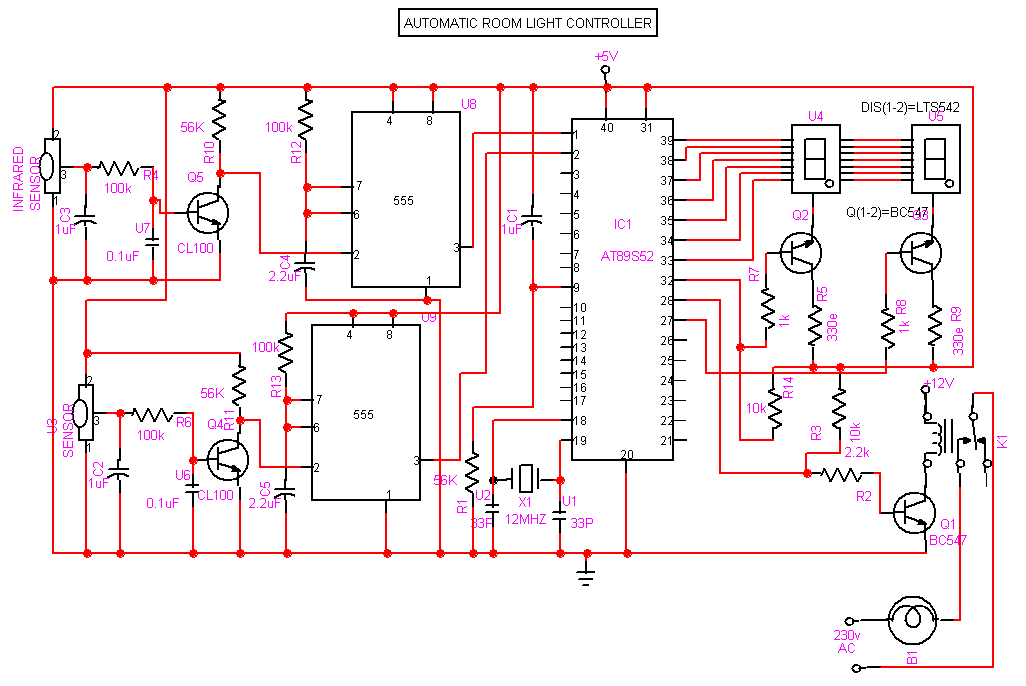
The objective of this project is to make a controller based model to count number of persons visiting particular room and accordingly light up the room. Here we can use sensor and can know present number of persons.
In today’s world, there is a continuous need for automatic appliances with the increase in standard of living, there is a sense of urgency for developing circuits that would ease the complexity of life.
Also if at all one wants to know the number of people present in room so as not to have congestion. This circuit proves to be helpful.


CIRCUIT DIAGRAM
RECEIVER CIRCUIT

The IR transmitter will emit modulated 38 kHz IR signal and at the receiver we use TSOP1738 (Infrared Sensor). The output goes high when the there is an interruption and it return back to low after the time period determined by the capacitor and resistor in the circuit. I.e. around 1 second. CL100 is to trigger the IC555 which is configured as monostable multivibrator. Input is given to the Port 1 of the microcontroller. Port 0 is used for the 7-Segment display purpose. Port 2 is used for the Relay Turn On and Turn off Purpose.LTS 542 (Common Anode) is used for 7-Segment display. And that time Relay will get Voltage and triggered so light will get voltage and it will turn on. And when counter will be 00 that time Relay will be turned off. Reset button will reset the microcontroller.Microcontroller based Visitor Counter.


http://projectsworld.files.wordpress.com/2010/05/room.gif

TRANSMISSION CIRCUIT


This circuit diagram shows how a 555 timer IC is configured to function as a basic monostable multivibrator. A monostable multivibrator is a timing circuit that changes state once triggered, but returns to its original state after a certain time delay. It got its name from the fact that only one of its output states is stable. It is also known as a ‘one-shot’.
In this circuit, a negative pulse applied at pin 2 triggers an internal flip-flop that turns off pin 7′s discharge transistor, allowing C1 to charge up through
R1. At the same time, the flip-flop brings the output (pin 3) level to ‘high’. When capacitor C1 as charged up to about 2/3 Vcc, the flip-flop is triggered once again, this time making the pin 3 output ‘low’ and turning on pin 7′s discharge transistor, which discharges C1 to ground. This circuit, in effect, produces a pulse at pin 3 whose width t is just the product of R1 and C1, i.e., t=R1C1.
IR Transmission circuit is used to generate the modulated 36 kHz IR signal. The IC555 in the transmitter side is to generate 36 kHz square wave. Adjust the preset in the transmitter to get a 38 kHz signal at the o/p. around 1.4K we get a 38 kHz signal. Then you point it over the sensor and its o/p will go low when it senses the IR signal of 38 kHz.
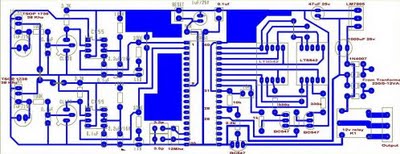
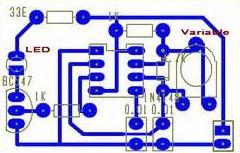
 PCB Design:
 http://projectsworld.files.wordpress.com/2010/05/comp1.jpg 

http://projectsworld.files.wordpress.com/2010/05/3.jpg 

Source: http://projectsworld.wordpress.com/ 

Control Helicopoter with your hand glove

Introduction


The purpose of our project is to control a toy helicopter using flex sensors attached to a glove. The flex sensors are intended to replace the remote control that is generally used to fly the helicopter. Additionally we also created another mode which will allow us to use an accelerometer to control the forward and backward, and left and right movements, while using a flex sensor to control the throttle of the helicopter. We have two gloves each with three flex sensors attached to it. One of the gloves has an accelerometer attached to it.    

High Level Design

1. Rationale
One of our group members Zack ordered a helicopter from eBay for his own personal use. Once we started playing with it, we thought it would be a cool idea to try to control the helicopter without the controller and fly it using one's own body movements. Our initial idea was to attach electrodes to our arm to detect the flexing of the muscles on the forearm. Using the signals from the electrodes we thought that we would be able to send these signals to the helicopter and control it. However, Professor Land informed us that it might be dangerous to conncet electrodes to our arm and additionally the signals received from the electrodes might too small to feasibly use. Instead we decided an alternative would be to attach flex sensors to the hand and by bending our fingers we would be able to control the movements of the helicopter. This was how the Flexicopter was born!   


2. Background Information

Flex Sensors 

Flex sensors are basically variable resistors. As seen from the Figure 1 below, we will use a voltage divider circuit we to obtain the voltage across the flex sensor. As you bend the flex sensor, its resistance gets higher and hence the voltage across it gets higher. We will use the changing voltage to control the helicopter.


Figure 1: Flex Sensor Circuit
Accelerometer


An accelerometer measures how much you accelerate the device relative to the acceleration of free fall which is gravitational acceleration, g. Based on the relative acceleration of the device, it outputs a voltage. So as you move the accelerometer left, right, back and forward, the voltage changes. Similar to the flex sensors, we will use the varying voltage to control the helicopter.
Figure 2: Accelerometer


Helicopter


The way the helicopter works is that the Light Emitting Diode (LED) transmits bit streams repeatedly from the controller to the helicopter through RF waves. The receiver on the helicopter obtains these bit streams and moves the helicopter. Our setup mimicked this.
Figure 3: Helicopter

3. Logical Structure
Figure 4: Overall structure of our design


4. Hardware/Software TradeOffs

Our budget restricted the quality of helicopter we were able to use. We used a low quality fifteen dollar helicopter ordered from Hong Kong. This meant that we had no information about what kind of bit stream pattern the controller of the helicopter was using and we had to figure it out ourselves. Additionally, the low quality meant that the helicopter could easily be damaged. Our worst fears came true when our helicopter's stabilizer broke off two days before the final project was to be demoed because we had crashed it often when testing it. For the original helicopter, the bit stream pattern was too complicated for us to figure out any patterns they were following when we moved the helicopter backwards, forwards, left and right because there was some kind of error correction occurring and we could not figure out the algorithm. Hence we had to limit the motion of the helicopter to ten levels of throttle, and for each level of throttle we limited the helicopter to five levels of right,left, forward, backward, forward-right, forward-left, backward-right and backward-left. This still meant that we had to record 400 different bit streams, which included taking 400 pictures on the oscilloscope and translating them into a pattern that our code could translate send out. However, for the helicopter we ended up using after the original one broke, the bit stream patterns were much simpler and we were able to observe obvious patterns.

Software and Hardware Design


1. Hardware Design


As mentioned in our introduction, we allow the helicopter to be controlled in two modes. The first mode is the flex sensor mode, where only the flex sensors control the movement. In this mode, on the right hand, the flex sensor on the thumb controls the throttle, the flex sensor on the index finger controls the 'left' movement, the flex sensor on the middle finger controls the 'right' movement. On the left hand, the flex sensor on the index finger controls 'forward' motion while the flex sensor on the middle finger controls the 'backward' motion. The second mode is the accelerator mode, where the accelerator combined with on flex sensor controls the movement of the helicopter. Tilting the accelerator on the right hand up, down, to the left and to the right moves the helicopter forward, backward, left and right respectively. The flex sensor on the thumb of the left hand controls the throttle of the helicopter. These are summarized in Figure 5 shown below.


You can see the following components of  the glove from Figure 6 below. We sewed rectangular pockets of cloth on each individual finger of the glove in order to insert the flex sensors. A voltage divider circuit was built on a protoboard, which was then sewn on to the lower portion of the glove. Output wires from the protoboard are then connected to the microcontroller as inputs.
Figure 6: The Right Glove

The voltage divider circuit constructed on the protoboard is shown below in Figure 7.
   Figure7: Flex Sensor Circuits on the hands

The accelerometer and its associated circuit was placed on another protoboard and this was sewn onto the back of glove, on the palm of the hand as shown in Figure 2. We had to add additional circuitry to the accelerometer because the maximum voltage it could take was 3.6V and the VCC that we were sending to it from the microcontroller was 5V. Hence we needed a circuit that would step down the voltage from 5V to about 3V. We knew that the transistor posed a certain amount of impedence and we also knew that we had to have a voltage less than 3.6V at the emitter of the transistor which was then connected to the VCC input of the accelerometer. Instead of using theoretical equations to determine the resistances on the voltage divider circuit,  we used trial and error and determined that we needed 10 kiloOhms and 3 kiloOhms resistors. As shown below in Figure 8, the voltage at the base of the transistor will be about 3.84V. This gives us approximately 3.1V at the emitter of the transistor and this gets sent to the VCC of the accelerometer. 


Figure 8: AccelerometerCircuit

Since we did not want to make use of the STK500 board, we used a prototype board for the Mega644 and attached the Mega644 chip on it. We soldered all the diffferent components necessary onto the prototype board and then sewed it onto a piece of cloth which we then fashioned to wrap around our arm as shown in Figure 9. This way all the hardware necessary is on our body and nothing is detached. 

We also have the circuit which takes the bit stream pattern that has been indicated by the code based on which flex sensors we have bent and how much they have been bent, and sends it to the LED. Since we need the signal to be sent to the helicopter to be strong, we have to amplify the current going through the LED. The port pins limit the amount of current drawn to about 30 Milliamperes. We need at least 150 Milliamperes to be sent through the LED in order for the signal to be strong enough. The circuit we constructed is shown below in Figure 10. The basic idea of this circuit is that the current will be drawn from the 12 V voltage source that is connected to the LED. 


Figure 9: LED Circuit


2. Software design

The code is set up to operate in two modes: one which is controlled solely by the flex sensors and one which is controlled by the accelerometer and one flex sensor for throttle.  To choose between the two modes a digital input is read off of PORTC0, if the input is high the code operates in the accelerometer mode, when the input is low to this port the code operates in the flex sensor mode.  The code breaks down into two main sections for both modes: a section which chooses what signal to be sent, and a section that actually creates and sends the signal.   The signal to the helicopter consisted of high portions and low portions, of which, the high portions oscillate at a 37kHz rate.  After checking several bit streams, it became apparent that the signal was separated into six segments: start bits, 8-bits representing throttle, 4-bits representing right/left motion, 4-bits representing forward/backward motion, 2-bits representing channel a,b, or c, and the last three bits representing trim.  The start bits were a high signal, lasting 3280us and a low signal lasting 2120us.  These bits were consistent over all ranges of motion.  The next 8-bits in the signal were determined to be throttle.  The throttle increased linearly from 0x00 to 0xC9 based on how much the throttle was increased.  The four bits following that determined right and left motion.  If the controller was signalling maximum right, the bits would be 0x0 and if it was maximum left the bits would be 0xF.  The forward and back, which are the next four bits, work in a similar manner; when the controller was signaling maximum forward the bits were 0x0 and when it was maximum backward the signal was 0xF.  The two bits following that signify which channel the helicopter is operating on.  If the pattern was 0b00 then it meant channel a, 0b01 was channel b, and 0b10 was channel c.  Of the three trim bits the third to last bit was always a 0 and the second to last turned to one when left trim was pressed, and the last bit turned to one when the right trim was pressed.  To compile the signal from the inputs of the flex sensors and accelerometer, the flex sensors and accelerometer were tested and the maximum and minimum voltages were set in the code.  We set a linear relationship between the voltage coming in and the intensity of the throttle, right-left, and forward-back motion.  The flexData() and accellData() functions were called on according to the mode select, and these functions acquired the analog data from all the input ports which applied.  The input data was then used in the functions accelSignal() and flexSignal(), which actually compiled the signal to be sent in an array.  These functions were called on 100 times a second giving the system a signal to output.  

  
The function signalSender() combined with a compare match ISR on timer 0 were used to send the signal to the helicopter.  The ISR triggered at 74kHz, which is twice as fast as the 37kHz we were sending out. so we could set it up to toggle on match.  The signalSender() function goes through the 41 bit signal composed by accelSignal() or flexSignal(), sending the 37kHz signal when a high value was being sent and a zero when a low value was being sent.  When the full signal has finished sending it sends a low value for 10000 ticks to mimic the signal sent from the controller of the helicopter.  Only when this has completed does it start over, sending a new signal.  


3. Things tried that did not work out

The main problem that we had was that we broke our first helicopter.  This helicopter had a very complicated bit stream that had some sort of error correction code that was too difficult to figure out because we could not even tell what was representative of one's and zero's in the code.  Because of this issue we took 400 screen shots on the oscilloscope and then translated them into a bit stream that we compiled and sent out in our code.  The 400 hundred values consisted of doing 11 throttle values (no throttle to maximum throttle) and then within each of these ten throttles (zero throttle was the same for everything because it was off) we had 10 values going from forward to back, 10 values from right to left,  10 values from forward-left to back-right, and 10 values from forward-right to back-left.  Because we were already at 400 we were not able to go into changing the trim, which is an offset for the helicopter for spinning right or left.  The code was set up to choose out of a matrix the values based on the inputs from the flex sensors and the accelerometer.  We had this design set up and working with the flex sensors and accelerometer, however the helicopter was offset with  a spin and we could not correct this with our set up due to the lack of trim settings.  This spinning made it almost uncontrollable in the forward-back and left-right directions, although the throttle was easily controllable.  We did check the signal we were sending out on the oscilloscope against the pictures we had taken, and we were sending the correct signals out for the hand motions we were making.  Unfortunately, two days before we checked off our project the helicopter we were using crashed and the stabilizer broke off, completely inhibiting any control.  Luckily we were able to get another helicopter and decode its bit stream, which was significantly more simple than the previous helicopter's.  

Results of Design


    We compared the performance of flying our helicopter with the flex sensors and accelerometer with how the helicopter flies when we control it using the remote controller. It works almost exactly the same way. Our flex sensors are able to attain the maximum throttle speed as the controller does. While flexing our thumb does not provide as much range in the different levels of throttle as the controller does, we are still able to raise the helicopter up and down easily. When we use the controller to move the helicopter left or right, it mostly spins in the left-direction or right-direction and slowly moves to the left and right respectively. Our flex sensors display the same functionality. The flex sensors are able to move the helicopter forward and backwards visibly. When comparing the functionality of the accelerometer and the flex sensors, the flex sensors are able to control the helicopter better than the accelerometer. However, we feel that using the accelerometer is more intuitive than using the flex sensors, since tilting the accelerometer left and right moves the helicopter left and right, and tilting it up and down moves the helicopter forward and backward. The biggest difference between controlling the helicopter using the flex sensors and controlling it using the remote control would have to be distance that we are able to control the helicopter. We can only control the helicopter within a limited distance from the LED with our circuit. A more distinct disadvantage using our circuit is that we can only start the helicopter if the LED can be seen visibly from the helicopter. This means  for example we cannot have the starting position of the helicopter to be from the floor unless the LED is on the floor as well. We assumed that this was probably due to some additional changes in the bit stream patterns that we were not able to detect using the oscilloscope. 


Here is a video one of the team members Zack flying the helicopter using the flex sensors:

Conclusions


1. Expectations vs. Actual Results

    We did not meet our expectations that were previously set out at the beginning of this project.  We had assumed that we would be able to decode the bit stream quickly, however, with our first helicopter this was not the case.  We spent hours acquiring the different bit streams, only to have them prove useless when we broke the helicopter.  Our code ended up becoming a lot less complicated when the new helicopter was included in the project.  We were able to still utilize both an accelerometer mode and a flex sensor mode, and allow the user to choose between them by setting PORTC0 to zero (for flex sensor mode) and one (for accelerometer mode).  It was more difficult to control than originally anticipated because it takes a lot of concentration to keep the motions of your fingers separate.  


    One of the biggest problems we encountered was because of the flex sensors.  When we initially used them in our circuit, based on their resistances, they gave us a voltage range of ~0-3V.  However, over the course of the project, mostly at very unexpected times, flex sensors would lose their ability to change over the same range.  Our voltage ranges usually changed to ~0.4-0.6V making them practically unusable for our application.  One of the flex sensors ended up randomly working, but apart from that it was a very cumbersome problem.  Since we decided to only use six flex sensors it turned out fine in the end, since we ended up having about three flex sensors that no longer worked properly.  Our code was set up to allow for quick changes in calibration values depending on what flex sensor we are using.  We developed some code that was able to calibrate the flex sensors however we had to rewrite a lot of our code to make up for the fact that towards the last 3 days of our project several unfortunate events happened causing us to have to redo several aspects of the hardware and code.  We ended up leaving the calibration to be a pre-compile set up.

2. Usability


    We feel that our flexicopter can be used by most people with good hand coordination. It takes a while to get used to controlling the helicopter using the flex sensors and accelerometer. It is a steep learning curve, but we feel that once that curve has been overcome, users will thoroughly enjoy the feeling of controlling a helicopter using their own hands!


3. Appendix 

Code
#include <avr/pgmspace.h>
#include <stdio.h>
#include <stdlib.h>
#include <string.h>
#include <stdint.h>
#include <inttypes.h>
#include <avr/io.h>
#include <avr/interrupt.h>
#include <math.h>
#include <util/delay.h>
#include <avr/sleep.h>
 
//I like these...me too
#define begin {
#define end   }   


//The various sensors
unsigned char sensor1,sensor2,sensor3,sensor4,sensor5,sensor6,sensor7,sensor8;
//The pointers to the sensors
char *throttleP, *forwardP, *backP, *leftP, *rightP, *throttleAccelP, *rightleftP, *forwardbackP; //P for pointer
//Increment for which sensor to pick
char sensorCounter;
volatile unsigned int count;
unsigned int signalPointer; //pointer to count through one signal
char bitType;
char bitSent, turnSel;
//volatile unsigned int inputCount; //count for signalSender to be called


//accelerometer declarations
#define accelSampTime 768
volatile unsigned int accelCount;


//Declaration of variables for flex sensors high and low values
unsigned int throttleHighAccel, throttleLowAccel; //Throttle accelerometer  high/low
unsigned int throttleHighFlex, throttleLowFlex; //Throttle flexsensor high/low
unsigned int leftHigh, leftLow; //Left high/low
unsigned int rightHigh, rightLow; //Right high/low
unsigned int forwardHigh, forwardLow; //Forward high/low
unsigned int backwardHigh, backwardLow; //Back high/low


unsigned int leftHighAccel, leftLowAccel; //Left high/low for accelerometer
unsigned int rightHighAccel, rightLowAccel; //Right high/low for accelerometer
unsigned int forwardHighAccel, forwardLowAccel; //Forward high/low for accelerometer
unsigned int backwardHighAccel, backwardLowAccel; //Back high/low for accelerometer


//Bits within the bit stream decode
#define sm0 3 //Small 0 bit
#define sm1 0 //Small 1 bit
#define bg1 1 //Big 1 bit
#define bit1 5  //first 1 bit 
#define bit2 6  //second bit 0 bit


//Bit lengths in half periods of 37.0kHz
#define sm0len 37  //~520us
#define sm1len 61  //~860us
#define bg1len 123 //~1720us
#define OneBit 234 //~3280us for first bit 1
#define TwoBit 151 //~2120us for second bit 0 
//Define Time between sampling flex sensors
//#define flexSampTime 3840 //allows for the data to be read 20times/sec using timer0
//#define flexSampTime 1536 //allows for the data to be read 50times/sec using timer0
#define flexSampTime 768 //allows for the data to be read 100times/sec using timer0


//Time count down to trigger reading the values from the flex sensors 20times/sec
volatile unsigned int flexCount; 


char allBits[41] = {5,6,0,3,0,3,0,3,0,3,0,3,0,3,0,3,0,3,1,3,0,3,0,3,0,3,1,3,0,3,0,3,0,3,1,3,0,3,0,3,0};


//*********************************************************** 
//Singnal Sender sends the signal to the IR emitter
void signalSender(void)
begin


//When the signalPointer is not 20 then we are transmitting a bit stream
if (signalPointer < 41)
begin
//If you finished sending the last bit you can move on
if (bitSent)
begin
bitType = allBits[signalPointer];
bitSent = 0; //Mark the bit as unsent
if ((bitType == sm0) || (bitType == bit2)) //if its zero or 
begin
TCCR0A = 0b00000010; // turn off OC0A and clear-on-match because sending a low value
PORTB = 0x00; 
end
else
begin
TCCR0A = 0b01000010; // turn on toggle and clear-on-match because sending a high value
end
end
//check if bit has completed 
else if (((bitType == sm0) && (count == sm0len)) ||
((bitType == sm1) && (count == sm1len)) ||
((bitType == bg1) && (count == bg1len)) ||
((bitType == bit1) && (count == OneBit)) ||
((bitType == bit2) && (count == TwoBit)))
begin
count = 0; //reset count
bitSent = 1; //update bitSent to true 
signalPointer++;
end // if bit complete
end // if signalPointer less than 41
else //if signalPointer 41
begin


if (count >= 10000)//8646)
begin
signalPointer = 0;
count = 0;
TCCR0A = 0b01000010; // turn on toggle and clear-on-match because we have held the signal low for 10000
end
else 
begin
TCCR0A = 0b00000010; // turn off OC0A and clear-on-match because sending low signal for 10000
PORTB = 0x00;    //turn off output between signals
end
end
end


//***********************************************************
//timer 0 comare match ISR for the signalSender
ISR (TIMER0_COMPA_vect) 
begin
//Count how many half periods the 37kHz signal has gone through
count++; 
signalSender();
flexCount--; //Decrement flexCount each time
accelCount--;
end  
//***********************************************************  


//***********************************************************        
void flexSignal()
begin
///////////////////
////THROTTLE///////
///////////////////
double throttlTemp1,throttleTemp2;
int integerThrottle;


integerThrottle = ((201/(throttleHighFlex - throttleLowFlex)) * (*throttleP)) + (201 - ((201/(throttleHighFlex - throttleLowFlex))*throttleHighFlex));


if (*throttleP < throttleLowFlex)
begin
allBits[2] = 0; 
allBits[4] = 0; 
allBits[6] = 0; 
allBits[8] = 0; 
allBits[10] = 0; 
allBits[12] = 0; 
allBits[14] = 0;
allBits[16] = 0; 
end
else 
begin
allBits[2] = (integerThrottle & 0b10000000) >> 7; 
allBits[4] = (integerThrottle & 0b01000000) >> 6; 
allBits[6] = (integerThrottle & 0b00100000) >> 5; 
allBits[8] = (integerThrottle & 0b00010000) >> 4; 
allBits[10] = (integerThrottle & 0b00001000) >> 3; 
allBits[12] = (integerThrottle & 0b00000100) >> 2; 
allBits[14] = (integerThrottle & 0b00000010) >> 1;
allBits[16] = (integerThrottle & 0b00000001); 
end


//////////////////
////LFT-RT////////
//////////////////


char offRightLeft;
int integerRightLeft; 


int integerLeft = (((200/(leftHigh - leftLow)) * (*leftP)) >> 5) + 8;
int integerRight = ((200/(rightHigh - rightLow)) * (*rightP)) >> 5 ;


//Choosing which result to use for right-left motion
if ((integerLeft - 8) > integerRight) 
begin
integerRightLeft = integerLeft;
offRightLeft = (*leftP < leftLow); 
// PORTD = PORTD ^ 0x02;
end
else
begin 
integerRightLeft = integerRight;
offRightLeft = (*rightP < rightLow); 
// PORTD = PORTD ^ 0x04;
end


if (offRightLeft)
begin
allBits[18] = 1; 
allBits[20] = 0; 
allBits[22] = 0; 
allBits[24] = 0; 
// PORTD = PORTD ^ 0x01;
end
else 
begin
allBits[18] = (integerRightLeft & 0b1000) >> 3; 
allBits[20] = (integerRightLeft & 0b0100) >> 2;
allBits[22] = (integerRightLeft & 0b0010) >> 1; 
allBits[24] = (integerRightLeft & 0b0001); 
end


////////////////////
////FWD-BACK////////
////////////////////


int result3, result4;
char offForwardBack;
int integerForwardBack; 


int integerForward = (((200/(forwardHigh - forwardLow)) * (*forwardP)) >> 5) + 8;
int integerBack = ((200/(backwardHigh - backwardLow)) * (*backP)) >> 5 ;


//Choosing which result to use for right-left motion
if ((integerForward - 8) > integerBack) 
begin
integerForwardBack = integerForward;
offForwardBack = (*forwardP < forwardLow); 
// PORTD = PORTD ^ 0x02;
end
else
begin 
integerForwardBack = integerBack;
offForwardBack = (*backP < backwardLow); 
// PORTD = PORTD ^ 0x04;
end


if (offForwardBack)
begin
allBits[26] = 1; 
allBits[28] = 0; 
allBits[30] = 0; 
allBits[32] = 0; 
// PORTD = PORTD ^ 0x01;
end
else 
begin
allBits[26] = (integerForwardBack & 0b1000) >> 3; 
allBits[28] = (integerForwardBack & 0b0100) >> 2;
allBits[30] = (integerForwardBack & 0b0010) >> 1; 
allBits[32] = (integerForwardBack & 0b0001); 
end


end
//***********************************************************


//***********************************************************
//Task for getting ADC data from flex sensors
void flexData(void)
begin


flexCount = flexSampTime;
//Grab analog data off flex sensors PORTA0-4
if (sensorCounter == 0x00)
begin
sensor1 = ADCH;
ADMUX =  (1 << REFS1) | (1 << REFS0) | (1<<ADLAR) + 0b00001;
ADCSRA |= (1<<ADSC);
sensorCounter = 0x01;
end
else if (sensorCounter == 0x01)
begin
sensor2 = ADCH;
ADMUX =  (1 << REFS1) | (1 << REFS0) | (1<<ADLAR) + 0b00010; 
ADCSRA |= (1<<ADSC);
sensorCounter = 0x02; 
end
else if (sensorCounter == 0x02)
begin
sensor3 = ADCH;
ADMUX =  (1 << REFS1) | (1 << REFS0) | (1<<ADLAR) + 0b00011;
ADCSRA |= (1<<ADSC);
sensorCounter = 0x03;
end
else if (sensorCounter == 0x03)
begin
sensor4 = ADCH;
ADMUX =  (1 << REFS1) | (1 << REFS0) | (1<<ADLAR) + 0b00100;
ADCSRA |= (1<<ADSC);
sensorCounter = 0x04;
end
else
begin
sensor5 = ADCH;
ADMUX =  (1 << REFS1) | (1 << REFS0) | (1<<ADLAR) + 0b00000;
ADCSRA |= (1<<ADSC);
sensorCounter = 0x00;
end


//When we have read from all the flexsensors update signal being sent
if (sensorCounter == 0x00)
begin
flexSignal(); 
end


end  
//***********************************************************


//***********************************************************        
void accelSignal(void)
begin


allBits[38] = (PINC & 0x02) >> 1; //trim left
allBits[40] = (PINC & 0x04) >> 2; //trim right


PORTD = allBits[40];


////////////////////
////THROTTLE////////
////////////////////


int integerThrottle;


integerThrottle = ((201/(throttleHighAccel - throttleLowAccel)) * (*throttleAccelP)) + (201 - ((201/(throttleHighAccel - throttleLowAccel))*throttleHighAccel)) +24;


//PORTD = ~(integerThrottle);


if (*throttleAccelP < throttleLowAccel)
begin
//PORTD = (PORTD ^  0x01);
allBits[2] = 0; 
allBits[4] = 0; 
allBits[6] = 0; 
allBits[8] = 0; 
allBits[10] = 0; 
allBits[12] = 0; 
allBits[14] = 0;
allBits[16] = 0; 
end
else 
begin
//PORTD = (PORTD ^  0x02);
allBits[2] = (integerThrottle & 0b10000000) >> 7; 
allBits[4] = (integerThrottle & 0b01000000) >> 6; 
allBits[6] = (integerThrottle & 0b00100000) >> 5; 
allBits[8] = (integerThrottle & 0b00010000) >> 4; 
allBits[10] = (integerThrottle & 0b00001000) >> 3; 
allBits[12] = (integerThrottle & 0b00000100) >> 2; 
allBits[14] = (integerThrottle & 0b00000010) >> 1;
allBits[16] = (integerThrottle & 0b00000001); 
end


////////////////////
////LEFT-RIGHT////////
////////////////////
 int integerLeftAccel;
 int integerRightAccel;


integerLeftAccel = (((200/(rightLowAccel - rightHighAccel)) * (*rightleftP))  >> 5) - 2 ;


//PORTD = ~(integerLeftAccel);
allBits[18] = (integerLeftAccel & 0b1000) >> 3; 
allBits[20] = (integerLeftAccel & 0b0100) >> 2;
allBits[22] = (integerLeftAccel & 0b0010) >> 1; 
allBits[24] = (integerLeftAccel & 0b0001); 


////////////////////
////FORWARD-BACK////////
////////////////////
 int integerForwardAccel;
 int integerBackAccel;


integerBackAccel =~( (((200/(backwardLowAccel - backwardHighAccel)) * (*forwardbackP))  >> 5) - 3 );


//PORTD = ~(integerBackAccel);


allBits[26] = (integerBackAccel & 0b1000) >> 3; 
allBits[28] = (integerBackAccel & 0b0100) >> 2;
allBits[30] = (integerBackAccel & 0b0010) >> 1; 
allBits[32] = (integerBackAccel & 0b0001); 


end
//***********************************************************


//***********************************************************
//Task for getting ADC data from accelerometer and flex sensor
void accelData(void)
begin


accelCount = accelSampTime;


if (sensorCounter == 0x00)
begin
sensor6 = ADCH;
ADMUX = (1 << REFS1) | (1 << REFS0) | (1<<ADLAR) + 0b00110; 
ADCSRA |= (1<<ADSC);
sensorCounter = 0x01;
end
else if (sensorCounter == 0x01)
begin
sensor7 = ADCH;
ADMUX = (1 << REFS1) | (1 << REFS0) | (1<<ADLAR) + 0b00111; 
ADCSRA |= (1<<ADSC);
sensorCounter = 0x02;
end
else if (sensorCounter == 0x02)
begin
sensor8 = ADCH;
ADMUX = (1 << REFS1) | (1 << REFS0) | (1<<ADLAR) + 0b00101;
ADCSRA |= (1<<ADSC);
sensorCounter = 0x00;
end


//When we have read from accelerometer and throttle flexsensor update signal being sent
if (sensorCounter == 0x00)
begin 
accelSignal();
end  
end
//***********************************************************


//***********************************************************        
//Main loop
int main(void)
begin


/*********************************************************************/
/********************************* MCU INITIALIZATIONS BEGIN*******************************************/
/**********************************************************************
//Port B.3 gives the output to the IR emitter 
   DDRB = 0x08;
PORTB = 0x08;


//Port C.0 for switch mode select
DDRC = 0x00;
PORTC = 0xff;
//LED D.0-D.7
DDRD = 0xff;
  PORTD = 0xff;
//Turn on Timer 0 to control the signal to the IR emitter
TIMSK0 = 2; //turn on timer 0 cmp match ISR 
TCCR0A = 0b01000010; // turn on toggle and clear-on-match
  TCCR0B = 0b00000001; // no clock prescalar and turn on counter
  OCR0A = 216;   //set the compare reg to 216 time ticks for 37.0kHz square wave pulse


//********ADC*************
   //init the A to D converter 
   //channel zero/ left adj /EXTERNAL Aref
   //!!!CONNECT Aref jumper!!!!
   ADMUX =  (1 << REFS1) | (1 << REFS0) | (1<<ADLAR) + 0b00000;  
    
   //enable ADC and set prescaler to 1/128*16MHz=125,000
  //and clear interupt enable
  //and start a conversion
   ADCSRA = (1<<ADEN) | ((1<<ADSC) + 7) ; 


/*********************************** MCU INITIALIZATIONS END*******************************************/
/****************************************************************/


/****************************************************************/
/**************************** VARIABLE INITIALIZATIONS BEGIN*******************************************/
/*******************************************************************/
//Initialize values 
bitSent = 1;
signalPointer = 0;
count = 0;
flexCount = flexSampTime; 
accelCount = accelSampTime;
sensorCounter = 0x00;
//Sensor definitions
throttleP = &sensor1;
leftP = &sensor2;
rightP = &sensor3;
forwardP = &sensor4;
backP = &sensor5;
throttleAccelP = &sensor6; 
rightleftP = &sensor7;
forwardbackP = &sensor8;
//range for throttle, left-right and forward backward for flex sensors
throttleLowFlex = 15; 
throttleHighFlex = 90; 
leftHigh = 180; 
leftLow = 70;
rightHigh = 255; 
rightLow = 15;
forwardHigh = 200; 
forwardLow = 90;
backwardHigh = 200; 
backwardLow = 90;


//range for throttle, left-right and forward backward for accelerometer
throttleLowAccel = 15;
throttleHighAccel = 90;
leftHighAccel = 200; 
leftLowAccel = 165;
rightLowAccel = 134; 
rightHighAccel = 95;
forwardHighAccel = 200; 
forwardLowAccel = 150;
backwardLowAccel = 130; 
backwardHighAccel = 94;


/****************************** VARIABLE INITIALIZATIONS END*******************************************/
/*************************************************************/


  //crank up the ISRs
  sei();


  //main task scheduler loop 
  while(1)
  begin   
//If the flexCount is zero read the values from the flexsensors
   if (flexCount == 0)
begin
if ((PINC & 0x01) == 0x00)
begin
flexData();
// allBits[39] = (PORTC & 0x02) >> 1; //trim left
// allBits[40] = (PORTC & 0x04) >> 2; //trim right
end
end
if (accelCount == 0)
begin
if ((PINC & 0x01) == 0x01)
begin
accelData();
end
end
  end
end  
//***********************************************************


Cost Details
Parts Unit Price Quantity Total Price
Mega644 MCU $8 1 $8
Custom PC Board $4 1 $4
Helicopter $17.50 1 $17.50
Header Socket $0.05 115 $5.75
Flex Sensors* $10 10 Free
Accelerometer $20 1 $20
Pair of Gloves $11.68 1 $11.68
Cloth $3.77 1 $3.77


Total: $70.70


4. References 


Data Sheets

Accelerometer (A7260):       http://www.freescale.com/files/sensors/doc/data_sheet/MMA7260QT.pdf

NPN transistor (2N3904):      http://www.fairchildsemi.com/ds/2N/2N3904.pdf
Mega644 datasheet:             http://courses.cit.cornell.edu/ee476/AtmelStuff/mega644full.pdf 

Labels

About Me

My photo
I am an electrical and electronics engineering kathmandu university batch 2007
 
ELECTRICAL AND ELECTRONICS PROJECT COLLECTION. Design by Wpthemedesigner. Converted To Blogger Template By Anshul Tested by Blogger Templates.